 rhun
rhun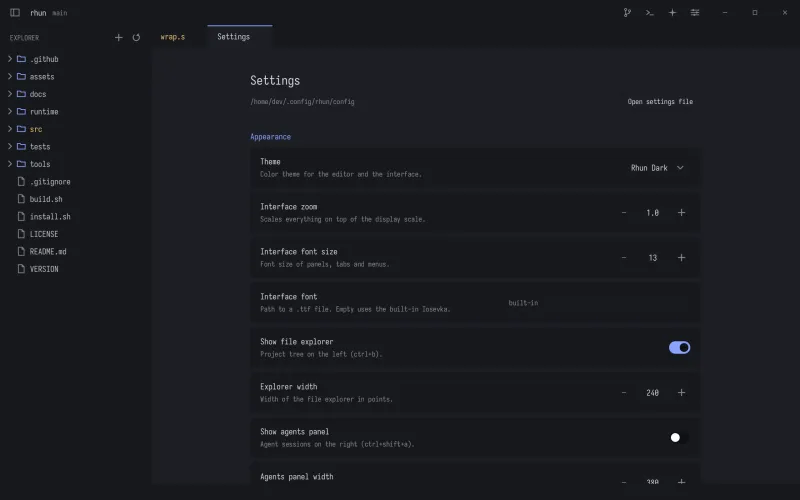
Start with Settings
Open Settings with Ctrl + , (Cmd + , on macOS). Changes apply while rhun is running.
Adjust the UI scale, editor and terminal font sizes, word wrap, and Vim mode. Scroll sensitivity sets the normal pace; fast scroll sensitivity controls scrolling while you hold Alt.
Choose your colors
Choose from 40 dark and light themes in Settings or run Select Color Theme from the command palette.
To make your own, put a .theme file in the themes folder beside your config. Start with a name, kind, and three colors:
name = My theme
kind = dark
bg = #1e1e2e
fg = #cdd6f4
accent = #f5c2e7
Your theme appears in the picker. On Omarchy, choose Follow Omarchy to use its current theme.
The config file
For settings you want to edit as text, open:
- Linux & macOS
~/.config/rhun/config- Windows
%APPDATA%\rhun\config
If you set XDG_CONFIG_HOME, rhun uses that as the parent directory instead.
[ui]
theme = tokyo-night
scale = 1.25

[editor]
font_size = 15
tab_width = 4
word_wrap = true

[terminal]
font_size = 14
Your shortcuts
Add overrides under [keys]. Command names follow the palette, in lowercase with underscores. Use none to disable a binding.
[keys]
ctrl+shift+d = duplicate_line
alt+z = none
For the full list of settings, custom syntax grammars, and scripting commands, see the technical reference.