 rhun
rhun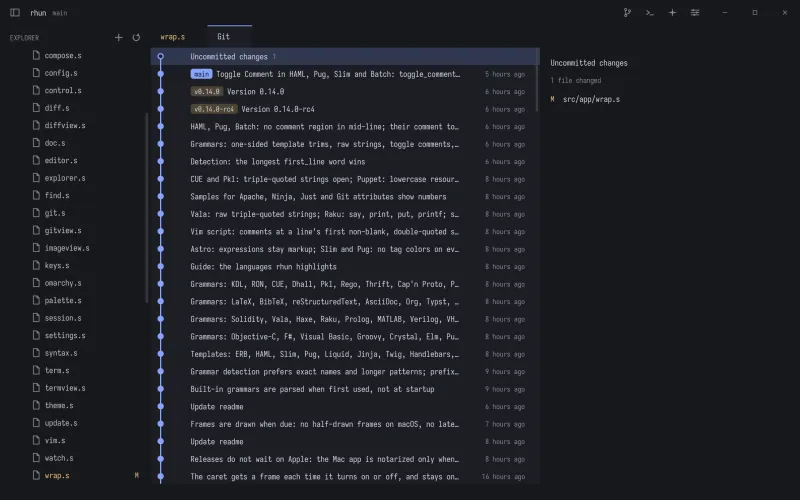
See what changed
Install Git and make sure git is on your PATH. On Windows, use Git for Windows.
The status bar shows your branch and worktree. In the editor gutter, green marks added lines, amber marks changed lines, and red marks deletions. The explorer shows file status too.
Run Git: Open Changes from the palette to compare a file with HEAD. Open Git history with Ctrl + Shift + G (Cmd on macOS), or use the branch button.
The history graph includes the latest 3,000 commits across all branches.
Stage and commit
- Open the worktree row in Git history to see your changed files.
- Use + to stage a file and − to unstage it.
- Write a commit message and commit the staged changes.
In the message input, Enter adds a line. Ctrl + Enter commits (Cmd + Enter on macOS).
When nothing is staged, Commit All stages all changes before committing. Stage individual files first when you want a smaller commit.
Work with remotes
Use Fetch, Pull, and Push from Git history or the command palette. Sync pulls, then pushes. Publish Branch sets up a branch that has no upstream yet.
Remote operations use your existing Git credentials. Set up an SSH agent or HTTPS credential helper first; rhun does not open an interactive password prompt.
Optional message drafts
In Settings → Git, you can enable commit-message drafts using Claude Code, Codex, or a local model through Ollama. This is off by default.
When you ask for a draft, the selected provider receives the diff. You can edit or cancel the result. Generating a message does not stage files or make a commit.