 rhun
rhun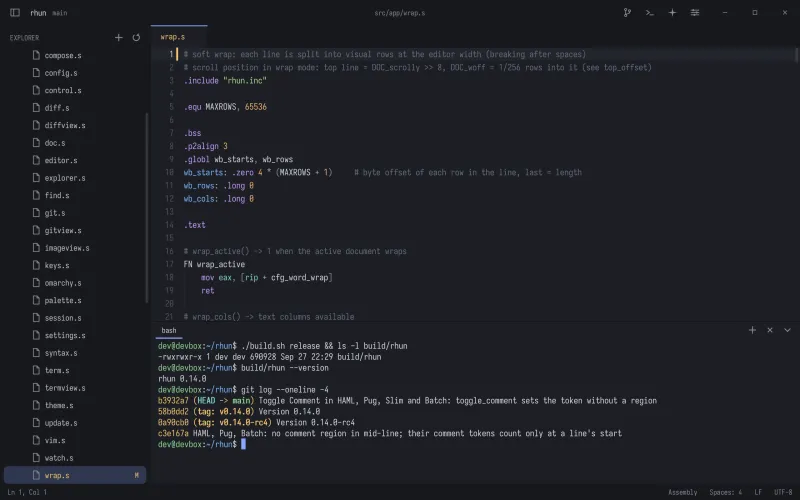
Open a terminal
Press Ctrl + ` to toggle the terminal. Use Ctrl + Shift + ` to create another one. On macOS, these shortcuts use Control, not Cmd.
rhun starts your shell. On Windows, the default is powershell.exe. On macOS, it starts a login shell so your usual shell setup is available.
With the terminal focused, Ctrl + Tab and Ctrl + Shift + Tab switch between terminals. On macOS, use Control for these tab shortcuts too.
Keys and clipboard
On Linux and Windows, copy with Ctrl + Shift + C and paste with Ctrl + Shift + V. On macOS, use Cmd + C and Cmd + V. This keeps Control + C available to interrupt a command.
Use Shift + Page Up or Page Down to read scrollback. If a terminal app captures the mouse, hold Shift while dragging to select text.
Tools that use the Kitty keyboard protocol can distinguish modified Enter keys. In supporting tools, Shift + Enter can insert a newline instead of submitting.
From output to source
Hold Ctrl (or Cmd on macOS) and click a URL to open it, or an existing file path to open the source. Paths like src/main.s:42:8 take you to the line and column.
Relative paths use the shell’s current directory on Linux and macOS. On Windows, they fall back to the project folder.
Make it yours
Editor and terminal font sizes are independent. Focus the terminal before using Zoom In or Zoom Out from the command palette.
To choose a shell, edit the [terminal] section of your config file. For example, on a system with fish installed here:
[terminal]
shell = /usr/bin/fish
font_size = 14
On Windows, use a native executable such as pwsh.exe or the path to Git Bash.